


This Radionode Tips topic covers how the alarm function can be set in RADIONODE365 as well as how to configure those alarms.
Where Can I Set Up The Alarm?
Radionode365 offers various features to support your data monitoring. The alarm function is one of them and is also a core feature of Radionode365. Therefore, utilizing the alarm function effectively can be considered effective using Radionode365.
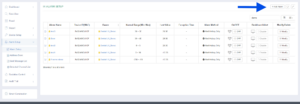
This is an example screen of Radionode365. If you look at the left side, you can see that the [Alarm Setup] menu is clicked. In this menu, we can set up and manage alarms. Here, you will see each of the sensor channels you are managing.
If you click the [Add Alarms] button pointed to by the blue arrow in the image, you can configure the detailed settings of the alarm. Additionally, existing alarms can be modified using the [Modify] button.
Now, let’s go ahead and click the [Add Alarms] button.
When you click the [Add Alarms] button, the Data Channel selection window will appear first. Select the channel you want to apply the alarm to, enter the name of the alarm, and then you can proceed to the next step.
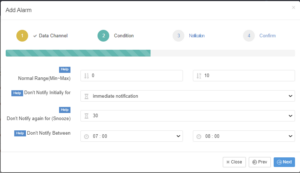
The next page is the [Condition] settings. Here, you can make four different settings for the alarm.
If you hover your mouse cursor over the blue Help box, explanations for each setting option will appear. Here are more detailed explanations:
Normal Range (Min~Max): specifies the normal data range where an alarm won’t be triggered. If the monitored data value goes beyond this range, an alarm will be triggered.
Don’t Notify Initially for: prevents alarms from being triggered for a certain period after the data value first deviates from the Normal Range. This is useful to prevent unnecessary alarms in routine situations, such as when opening a refrigerator to retrieve items, causing a temporary rise in internal temperature.
Don’t Notify again for (Snooze): Prevents consecutive duplicate alarms from being triggered for a specific period after an alarm has occurred. This helps to avoid continuous alarms while the person in charge is addressing the issue after the initial alarm trigger.
Don’t Notify Between: Allows you to set a period during which alarms will not be triggered. This can be useful in environments where temperature deviations occur regularly at specific times, such as during scheduled warehouse restocking, to prevent unnecessary repeated alarms.
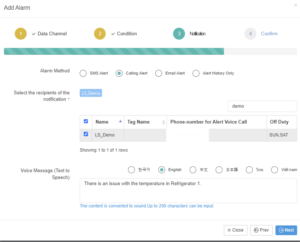
The next page, the [Notification] tab, allows you to select your preferred alarm methods such as SMS, phone call, email, or simply logging the alarm without notification.
You can also customize the text content of SMS and email alerts, as well as the TTS (Text-to-Speech) content for phone alerts. This enables you to communicate deviations more efficiently and clearly. TTS supports six languages: Korean, English, Japanese, Thai, Vietnamese, and Chinese.
You can view the method for Notification setting introduction through this video:
And the Outgoing Emergency Call Setup through this video:
For further information on Radionode products, or to find the ideal solution for your application-specific needs, contact a CAS DataLoggers Application Specialist at (800) 956-4437 or request more information.